Step-by-step guide
How to get your LinkedIn optimised
Have a career expert rewrite your LinkedIn, section by section, from your Resumere dashboard. This guide walks through every screen — signing in, opening LinkedIn Optimisation, choosing your route, submitting, and getting your rewritten profile.
LinkedIn Optimisation is an expert rewrite of the parts recruiters actually search — your headline, About and Experience, plus skills and keywords. You choose how it's delivered: Do-It-Yourself (a copy-paste document) or Done-For-You (an expert logs in and applies everything). You start it in a couple of minutes from inside your dashboard. Here's what to click, screen by screen.
What this guide covers
- Where LinkedIn Optimisation lives in your dashboard
- The two routes — Do-It-Yourself vs Done-For-You
- How you pay — and what counts as a credit
- What you get back, and where to find it
01Sign in to your dashboard
Go to your Resumere account and sign in. If you don't have an account yet, create one for free. Once signed in you'll land on your dashboard.
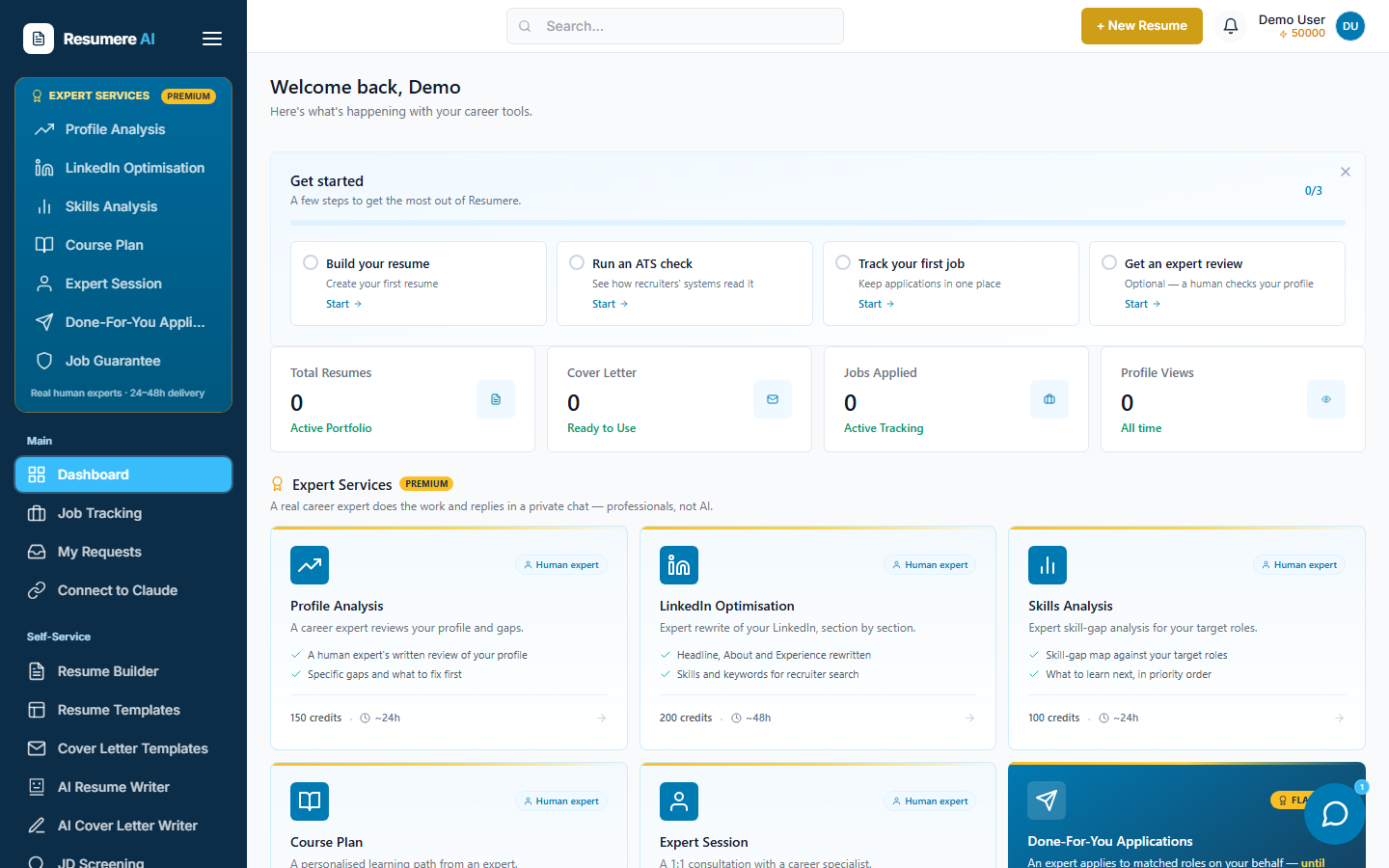
- 1The Expert Services panel in the sidebar
02Open LinkedIn Optimisation
In the left sidebar, under the gold Expert Services panel, click LinkedIn Optimisation. This opens the service page where you choose your route and submit.
- 1Click 'LinkedIn Optimisation'
03Choose your route and share your resume
The page lists what's rewritten, then asks you to choose a route. Do-It-Yourself sends you a fully written document to copy and paste yourself. Done-For-You hands the work to an expert who logs in and applies every change for you. Attach a resume (optional but recommended) so the rewrite matches your experience.
What gets rewritten
- A keyword-optimised headline
- A compelling About story
- Strategic Experience rewrites
- Skills and endorsement mapping for recruiter search
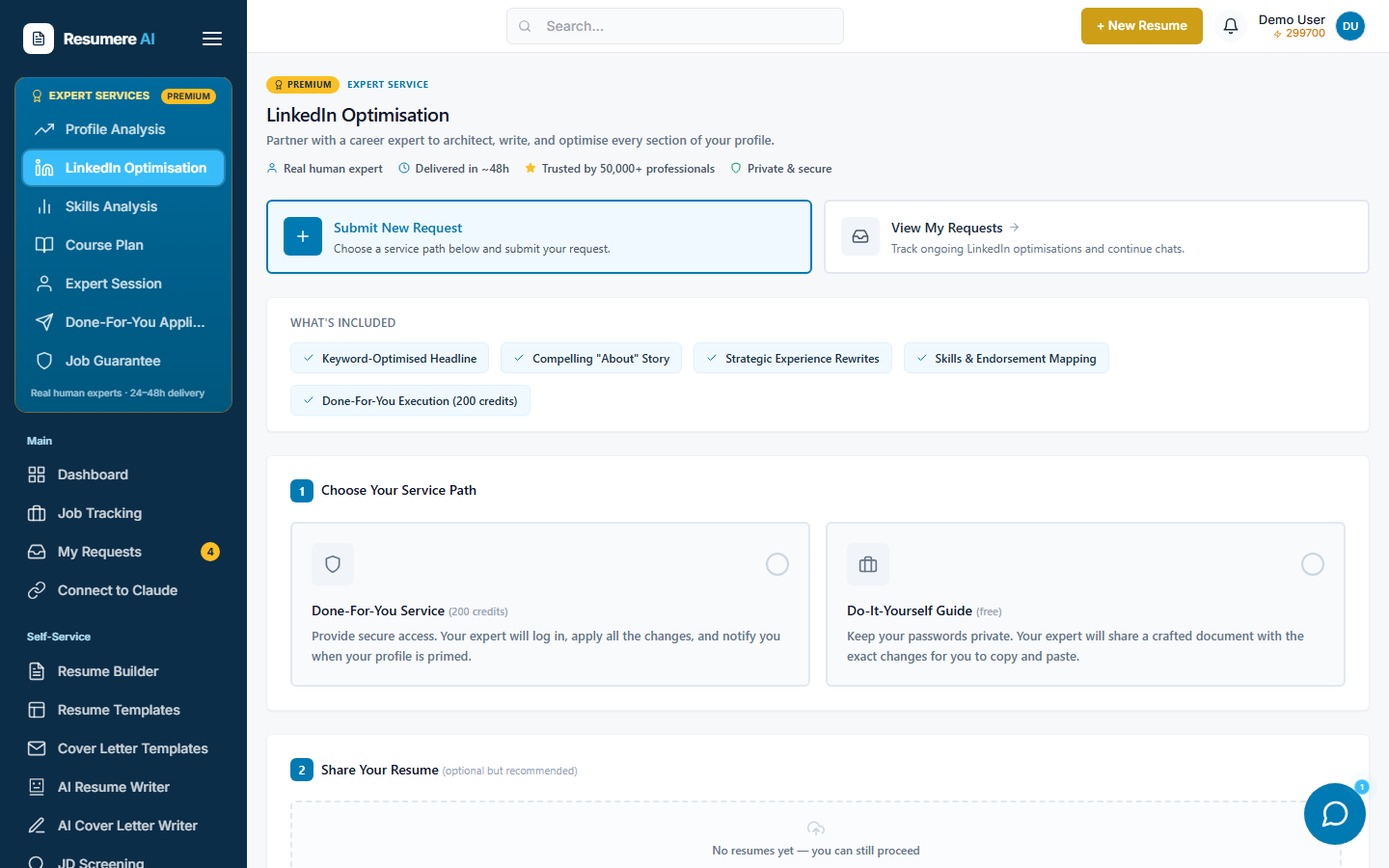
- 1What gets rewritten
- 2Done-For-You: an expert logs in and applies it for you
- 3Do-It-Yourself: a copy-paste document you apply yourself
04Submit your request
On the Do-It-Yourself route, click Submit DIY Request and your document request is created. On the Done-For-You route, click Open Secure Vault & Continue to hand over your login in an encrypted, single-use vault — the expert then applies the changes for you.
05Top up credits if prompted
If you chose Done-For-You and your wallet doesn't cover it, a Top Up Credits window opens showing how much you need. Pay by card or UPI, and your request continues automatically once the top-up succeeds.
06Get your rewritten profile
You land on your request page. It shows the status and a private chat with your expert. On Do-It-Yourself, your expert sends the copy-paste document in the chat. On Done-For-You, your expert applies the changes and updates you there.
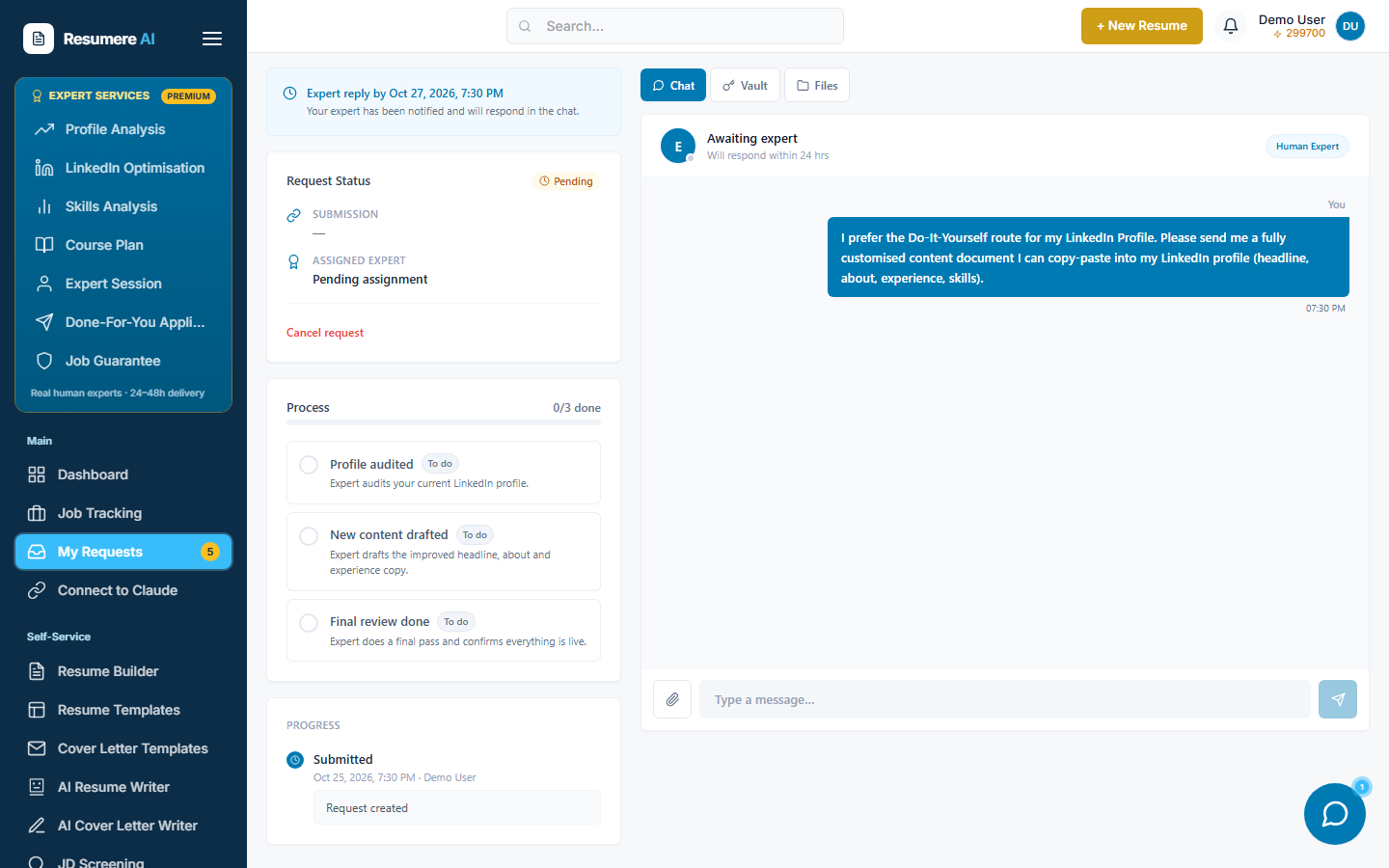
- 1Request status and what you submitted
- 2The process, step by step
- 3Private chat with your expert
07Find it later under My Requests
Your LinkedIn request lives under My Requests. Open it any time to get your document or check progress and continue the conversation. You'll get a notification when your expert replies.
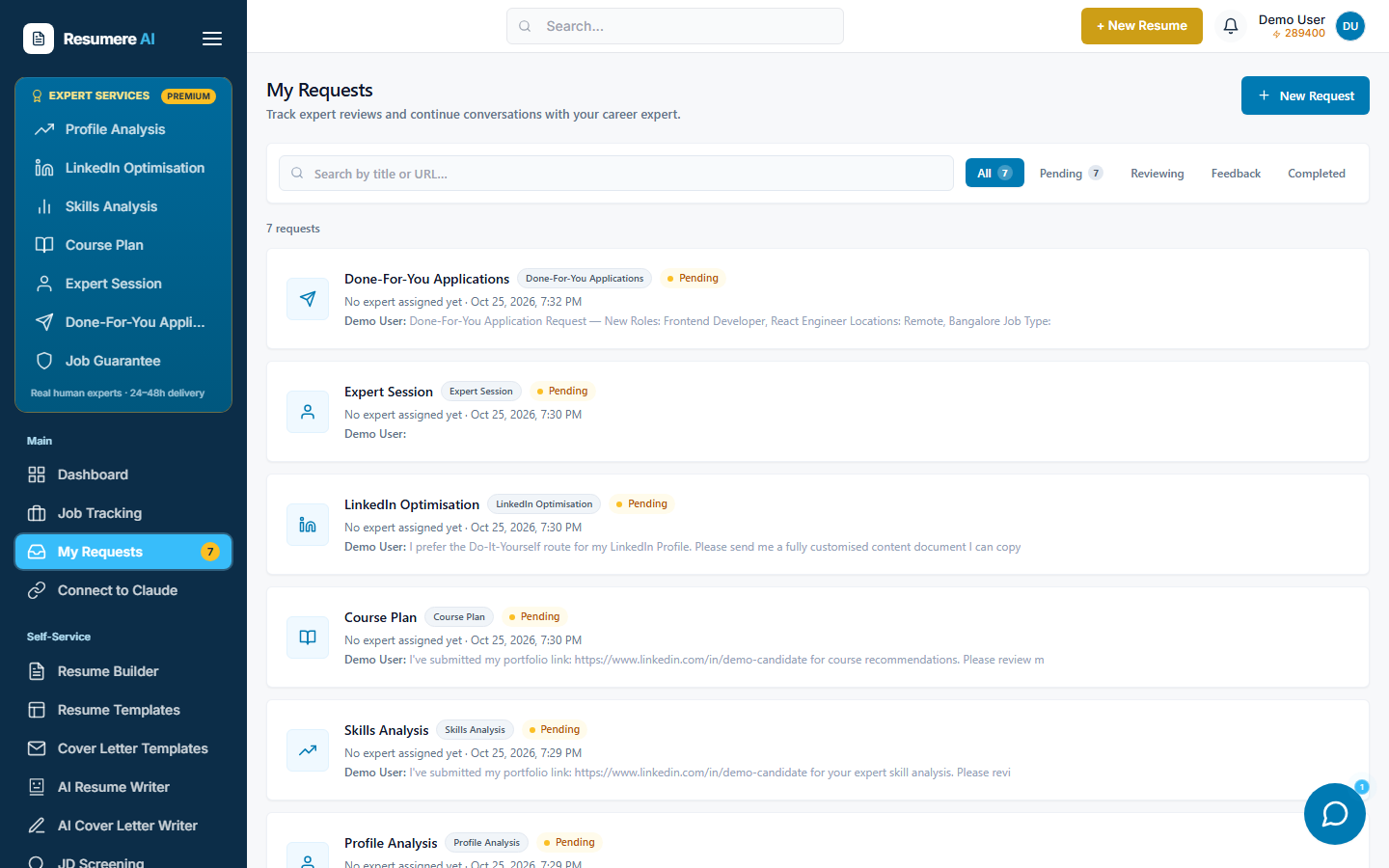
- 1Every expert request, newest first — open one to chat
- 2Filter by status: Pending, Reviewing, Feedback, Completed
Frequently asked questions
- What's the difference between Do-It-Yourself and Done-For-You?
- Do-It-Yourself sends you a fully written document (headline, About, Experience, skills) to paste into LinkedIn yourself. Done-For-You hands the work to an expert who logs in through a secure vault and applies every change for you. Both are paid once in credits — Done-For-You costs more than the Do-It-Yourself guide.
- Is it safe to give my LinkedIn login for Done-For-You?
- Your credentials go into a per-request encrypted vault, are used once by your assigned expert, and every access is audited. They are never stored in plain text. If you'd rather not share a login, choose Do-It-Yourself instead.
- How do I pay?
- Both routes are paid once from your Resumere credits wallet (1 credit = ₹1); the exact cost is shown before you confirm, and the Do-It-Yourself guide costs less than the full Done-For-You service. If your balance is short, a Top Up Credits window lets you add credits by card or UPI.
- How long does it take?
- Your expert is notified as soon as you submit and typically responds within about two days. You'll get a notification when your document or update is ready.
- Where do I find it later?
- Open My Requests in your dashboard. Your LinkedIn Optimisation is listed there — open it to get your document or check progress and continue the chat.
Ready for a LinkedIn recruiters can't miss?
Choose your route and submit from your dashboard in a couple of minutes.